A Blog Eating its Own Tail
Over the years I have collected a good many people in my sphere, among them are a good many geeks and nerds. I was chatting with a friend of mine about some of my recent projects, and he challenged me to start a blog about what I have been up to. Seemed as good a project as any, so to kick it off here is an auroboriginal post about how I set the blog up.
Briefly, a note on the use of AI. I use Claude pretty extensively, and it has become an indispensable tool for me to learn new skills. While I use Claude a lot for these projects, I think it is very easy to fall into the trap of letting it do everything for me. Part of my personal challenge with this blog is to write it entirely myself, even if AI generated many of the commands and techniques I use. I will endeavor to find appropriate references where possible.
So: how to make a self-hosted blog? What you are reading is running on Ghost via Docker on my server at my house. Frankly, that's the easy part. Let me introduce you to my favorite poems of all time:


Because of course you want this to show up nice and pretty at blog.alexheeren.com don't you?
So here's the gist of my stack:
- You type in blog.alexheeren.com on your web browser.
- My DNS provider has a CNAME record pointing "blog.alexheeren.com" to "ah-blog.duckdns.org".
- DuckDNS is my Dynamic Domain Name Service (DDNS) provider. It's free and redirects from "ah-blog.duckdns.org" to whatever my server tells it my current outward-facing IP address is. This gets updated every 5 minutes with a cronjob.
- The request then hits my router. My router forwards all requests to my network on ports 80 (http requests) and port 443 (https requests) to my server's static local IP address at the nginx-http and nginx-https services.
- Nginx presents a cert generated by the Certbot tool to provide a secure TLS handshake, proving that I am, indeed, blog.alexheeren.com. This uses Let's Encrypt, a free certificate authority provided by the Internet Security Research Group.
- All of my services are containerized, so on my server Docker is running all of these microservices and has a proxy network to control who gets to talk to what. Nginx is acting as a reverse proxy: you tell it what site you are looking for, and it points that request to the correct container.
- Your request finally makes it to the appropriate container (in this case, the container for Ghost, which is the project I am using for this blog) and you get served content.
Fortunately for the sake of this project, this is not the first time I have had to do all of this, so the DNS setup was pretty easy this time around. Always remember that haiku though, DNS is always the problem.
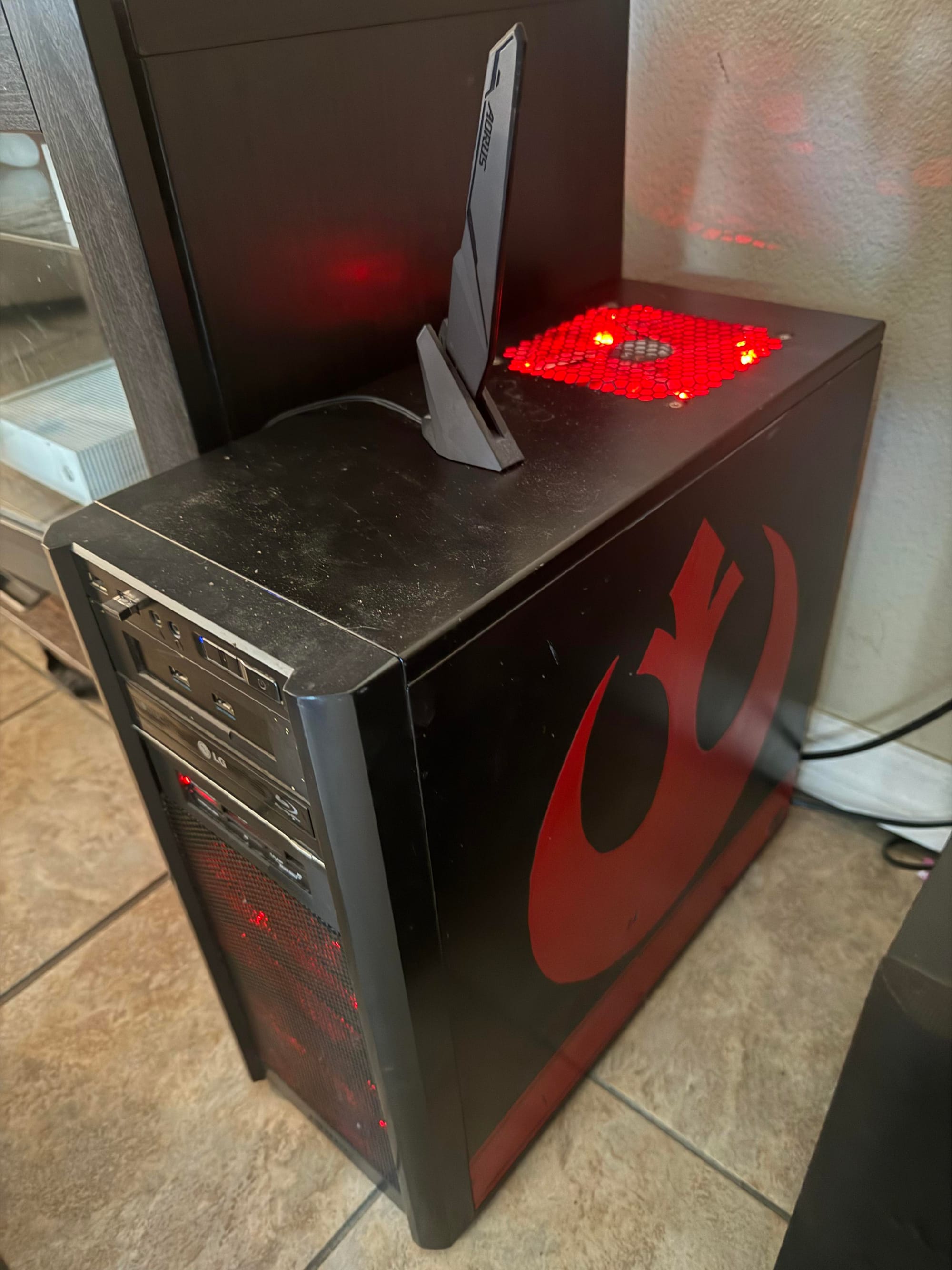
Now for the actual content in Docker. This whole Docker stack is running on an old computer which has truly lived a ship of Theseus type of life. Building this PC was one of my first big purchases out of College back in the day and it has served me extremely well over the last 15 years. If you want a big time blast from the past, I even documented that on YouTube. I have it running System76's Pop_OS! right now with the following hardware:
- CPU - Intel Core i7-11700K (11th Gen)
- RAM - 64 GB DDR4
- Storage - A bunch of random drives of all shapes and sizes. Heavy use of Volume Groups and Logical Volumes to obfuscate this into useable space.
- GPU - NVidia GTX 1070
So basically, I install Docker, then start adding microservices by adding them to the docker-compose.yml file.
proxy_net:
driver: bridge
ipam:
config:
- subnet: 172.19.0.0/16
gateway: 172.19.0.1
services:
nginx:
image: nginx:latest
container_name: nginx-reverse-proxy
ports:
- "80:80"
- "443:443"
volumes:
- ./nginx-proxy/conf.d:/etc/nginx/conf.d
- ./nginx-proxy/certs:/etc/nginx/certs
- ./nginx-proxy/nginx.conf:/etc/nginx/nginx.conf:ro
- /etc/letsencrypt:/etc/letsencrypt:ro
- ./certbot/www:/var/www/certbot:ro
networks:
proxy_net:
ipv4_address: 172.19.0.2
restart: unless-stopped

ghost:
image: ghost:5-alpine
container_name: ghost
expose:
- "2368"
environment:
- url=https://blog.alexheeren.com
- NODE_ENV=production
- database__client=sqlite3
- database__connection__filename=/var/lib/ghost/content/data/ghost.db
volumes:
- ./ghost/content:/var/lib/ghost/content
networks:
proxy_net:
ipv4_address: 172.19.0.4
restart: unless-stopped ```
What this is essentially doing is starting new containers based off of these presets whenever I run docker compose up from this directory. So it goes out and finds the latest nginx container from Docker Hub, downloads it, and spins it up (same for Ghost). This is the beauty of containers. These programs all rely on all of these other programs - dependencies - and containerizing them guarantees that as long as the person runs the Docker container, that container will have all of the dependencies nice and neat so the user (me!) doesn't have to think about it.
Then to direct this traffic we need a couple of .conf files in the nginx directory under conf.d, in this case nginx_lv/nginx-proxy/conf.d/blog.alexheeren.com.conf. This file tells nginx how to route requests it gets on certain ports from the router (remember forwarding ports 80 and 443 earlier?). Below is my blog.alexheeren.com.conf file.
server {
      listen 80;
      server_name blog.alexheeren.com;

      location /.well-known/acme-challenge/ {
          root /var/www/certbot;
      }

      location / {
          return 301 https://$host$request_uri;
      }
  }

server {
      listen 443 ssl;
      server_name blog.alexheeren.com;

      ssl_certificate     /etc/letsencrypt/live/blog.alexheeren.com/fullchain.pem;
      ssl_certificate_key /etc/letsencrypt/live/blog.alexheeren.com/privkey.pem;

      client_max_body_size 50M;

      location / {
          proxy_pass         http://ghost:2368;
          proxy_set_header   Host              $host;
          proxy_set_header   X-Real-IP         $remote_addr;
          proxy_set_header   X-Forwarded-For   $proxy_add_x_forwarded_for;
          proxy_set_header   X-Forwarded-Proto $scheme;

          limit_req zone=general burst=20 nodelay;
      }
  }
You can see here that it is listening on ports 80 and 443 for requests to blog.alexheeren.com, then serving the ssl certificates from the Let's Encrypt certificate authority I mentioned earlier. Requests on port 80 are automatically returned as https requests (everything should be encrypted!) and a port 443 SSL request. Then it does it's encryption handshake, forwards the traffic to ghost:2368 on the Docker proxy network along with some other information about the requests (all of those proxy_set_header lines) to make Ghost needs to make the connection.
So cool. It works? A bit of tinkering (and waiting for DNS propagation) later I found myself on the admin page for Ghost, ready to write this: my first blog post! Let's hit post and see what happens...